Install Docker and Run Your First Container
On this page
What you'll set up
A working Docker installation, a web server running in a container on your machine, and a clear picture of which component does what when you type docker run.
Step 1: install Docker on macOS, Windows or Linux
- macOS or Windows: install Docker Desktop (or an alternative such as Rancher Desktop, OrbStack or Podman Desktop). It runs a small Linux VM, because containers need a Linux kernel.
- Linux: install Docker Engine from Docker's repository for your distribution, then add your user to the
dockergroup, or use rootless mode. Know what the group means: Docker's documentation warns that it grants root-level privileges, because anyone who can talk to the daemon can start a container that mounts the host's whole filesystem (Docker docs). Add only people you'd givesudo.
Check it:
docker version          # shows a Client section and a Server (Engine) section
docker run hello-world  # pulls a tiny image and prints a greeting
If docker version shows the client but errors on the server, the daemon isn't running: start Docker Desktop or sudo systemctl start docker.
Step 2: run an nginx container
docker run -d --name web -p 8080:80 nginx:alpine-druns it in the background.--name webgives it a name instead of a random one.-p 8080:80maps port 8080 on your machine to port 80 in the container.
Open http://localhost:8080 and you'll see the nginx welcome page.
Step 3: inspect a running container
docker ps                      # running containers
docker logs -f web             # follow its output (Ctrl+C to stop following)
docker exec -it web sh         # open a shell inside it; type exit to leave
docker inspect web             # full JSON: IP, mounts, env, state
docker stats web               # live CPU and memory use
Step 4: stop and remove containers
docker stop web                # SIGTERM, then SIGKILL after 10 seconds
docker ps -a                   # stopped containers are still listed
docker rm web                  # remove it
docker run --rm -it alpine sh  # --rm deletes the container automatically when it exits
Stopped containers stay on disk until removed. docker system prune removes stopped containers, unused networks and dangling images when your disk fills up.
What happens behind docker run: dockerd, containerd and runc
"Docker" is several cooperating programs:
| Component | Job |
|---|---|
docker CLI | Turns your command into an API request |
dockerd | The daemon: manages images, containers, networks and volumes |
containerd | Pulls and stores images, supervises container lifecycles |
runc | Creates the namespaced, cgroup-limited process, then exits |
So docker run means: the CLI asks dockerd; dockerd asks containerd, which pulls nginx:alpine if it isn't cached; containerd uses runc to start the process with its namespaces and cgroups (Day 1); dockerd connects its network and port mapping.
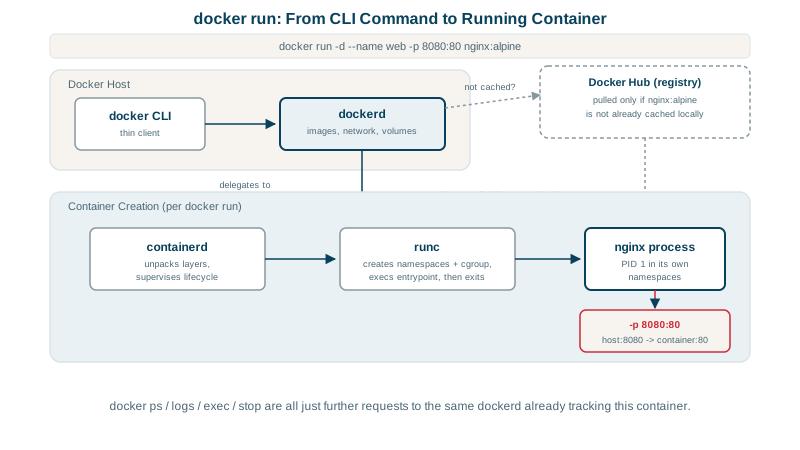
This matters later: Kubernetes doesn't use dockerd at all. It talks to containerd (or CRI-O) directly. Images you build with Docker run there unchanged, because they follow the open OCI image standard.
Common Docker errors and fixes
| Error | Cause | Fix |
|---|---|---|
Cannot connect to the Docker daemon | Daemon not running, or no permission on its socket | Start Docker; on Linux add your user to the docker group |
port is already allocated | Something else uses host port 8080 | Choose another host port: -p 8081:80 |
Conflict. The container name "/web" is already in use | A stopped container still has that name | docker rm web, or use another name |
| Container exits immediately | Its main process finished or crashed | docker logs <name> to see why |
Check yourself
It publishes the container's port 80 on the host's port 8080, so connecting to localhost:8080 on the host reaches the web server inside the container. The first number is the host port and the second the container port; without -p, the container's port is only reachable from Docker networks.
Stopped containers aren't removed automatically, so the name is still taken. Remove it with docker rm web, or use --rm next time.
runc, the low-level runtime. The Docker CLI talks to dockerd, which asks containerd to run the container, and containerd calls runc to set up the namespaces and cgroups and start the process. Kubernetes skips dockerd and talks to containerd directly.
An image is a read-only template: the filesystem layers and metadata for an application. A container is a running (or stopped) instance of an image, with its own writable layer on top. One image can run as many containers at once.
Something else on the host, often another container, is already using that host port. Find it with docker ps or a tool like lsof -i :8080, stop it, or publish on a different host port, such as -p 8081:80.