Linux View and Edit Files: cat, less, nano, vim
On this page
Reading files: cat, head and tail
| Command | Use it for |
|---|---|
cat file | Short files; printing or concatenating |
less file | Anything longer than a screen: scroll, search, never loads the whole file into memory |
head -n 20 file | The start |
tail -n 50 file | The end, such as recent log lines |
tail -f file (or -F) | Follow new lines as they're written; -F keeps following across log rotation |
wc -l file | Count lines |
cat on a 2 GB log floods your terminal; less opens it instantly.
Using less to read long files and logs
Inside less:
/patternsearches forward,?patternbackward,nandNjump to the next and previous match.Ggoes to the end,gto the start.Ffollows the file liketail -f;Ctrl+Cstops following.-S(asless -S) stops long lines wrapping, useful for wide logs.qquits.
less +/worker_connections /etc/nginx/nginx.conf # open and jump to the first matchCommands like journalctl, git log and man page their output through less too.
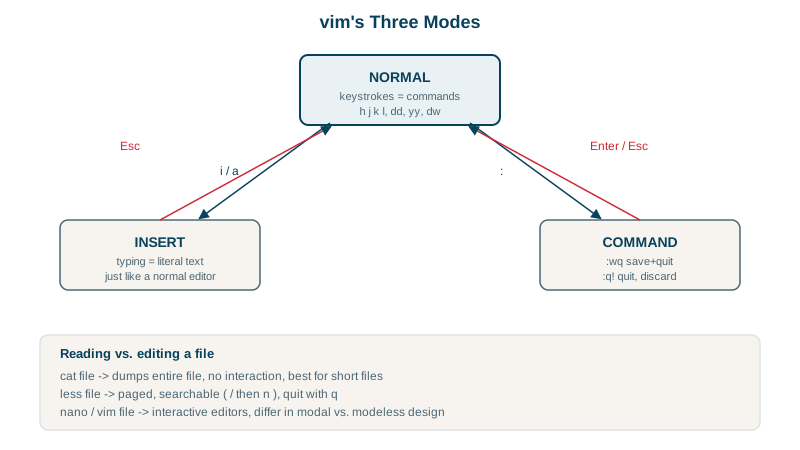
Editing files with nano
nano shows its shortcuts at the bottom of the screen: Ctrl+O saves, Ctrl+X exits, Ctrl+W searches. If you rarely edit files on servers, nano is fine.
Vim survival guide: open, edit, save, quit
vim is installed almost everywhere and is worth knowing at a basic level. It has modes:
- Open:
vim /etc/nginx/nginx.conf(you start in normal mode). /worker_connectionsthen Enter to search,nfor the next match.ienters insert mode to type;Escreturns to normal mode.dddeletes a line,uundoes,xdeletes a character.:wsaves,:qquits,:wqboth,:q!quits without saving.
If you get stuck, press Esc a couple of times and type :q!.
Safe config edits on a server
A typo in a config file can stop a service from starting. A routine that avoids that:
- Back up first:
sudo cp nginx.conf nginx.conf.bak.$(date +%F), or keep configs in Git and deployed by automation. - Edit with
sudoedit /etc/nginx/nginx.conf(edits a temporary copy with your own editor, then installs it). - Validate before reloading: most services have a check command.
sudo nginx -tnginx: configuration file /etc/nginx/nginx.conf test is successfulOther checks: sshd -t, visudo -c (Day 5), systemd-analyze verify (Day 19), apachectl configtest, promtool check config.
- Reload, don't restart, when you can:
systemctl reload nginxkeeps existing connections. - Keep a second session open when changing SSH or firewall settings, so a mistake doesn't lock you out (Day 27).
Check yourself
less pages through the file without loading all of it into memory or flooding the terminal. It supports searching with /, jumping to the end with G, and following new lines with F, which makes it the better tool for reading logs.
-f follows the open file descriptor, so after log rotation it keeps watching the old, renamed file. -F follows the file by name and reopens it when rotation replaces it, so it keeps showing new lines.
nginx -t, which validates the configuration syntax and referenced files. A typo then fails the test instead of stopping the service on reload. Many services have similar checks, like apachectl configtest or sshd -t.
Press Esc to leave insert mode, then type :wq and Enter to write and quit. :q! quits without saving, which is the escape hatch when you've made a mess of the file.
A quick copy like cp nginx.conf nginx.conf.bak lets you restore the working version immediately if the change breaks something. Under pressure, having a known-good copy is faster than trying to remember what you changed.