SSH Tutorial: Keys, Config and Remote Access
On this page
Why SSH keys beat passwords
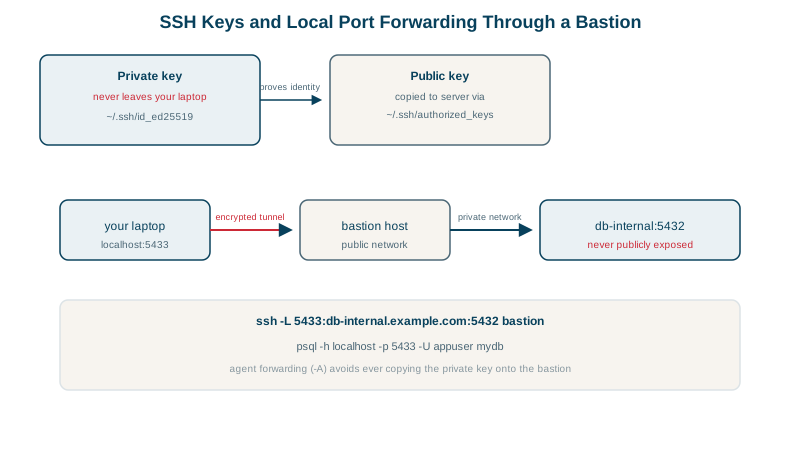
SSH encrypts everything between you and the server. Logging in with a password, though, invites brute-force attempts and password reuse. Key-based authentication replaces it: a private key stays on your machine, and the server holds the matching public key.
Creating an SSH key
ssh-keygen -t ed25519 -C "alice@laptop"
ls -l ~/.ssh-rw------- id_ed25519
-rw-r--r-- id_ed25519.pub- ed25519 is the modern default: short keys, fast, secure.
- The private key is
600; protect it with a passphrase and an agent (ssh-agent, or the macOS keychain) so you type it once per session. - The
.pubfile is safe to share.
Install the public key on the server's account (ssh-copy-id priya@server, or append it to ~/.ssh/authorized_keys there).
The SSH config file: host aliases and jump hosts
Instead of typing hosts, users and keys every time, describe them in ~/.ssh/config:
Host bastion
  HostName bastion.example.com
  User priya
  IdentityFile ~/.ssh/id_ed25519
  IdentitiesOnly yes

Host app1
  HostName 10.0.11.25
  User priya
  ProxyJump bastion
  IdentityFile ~/.ssh/id_ed25519

Host *
  ServerAliveInterval 30
Now ssh bastion and ssh app1 just work. ProxyJump connects to app1 through the bastion, end-to-end encrypted, without copying keys to the bastion. On the course VM (with both hosts pointing at the local machine):
$ ssh bastion 'echo logged in as $(whoami) on $(hostname)'
logged in as priya on lima-lab
$ ssh app1 'echo via jump: $(whoami)'
via jump: priya
ServerAliveInterval keeps idle sessions from being dropped by firewalls. IdentitiesOnly yes stops ssh offering every key in your agent (servers reject after too many attempts).
When SSH key login fails: permissions
The server ignores authorized_keys if the directories or file are writable by others, since someone else could have added a key. With ~/.ssh set to 777 on the server:
priya@127.0.0.1: Permission denied (publickey).The client error says nothing useful. The server's log does:
Authentication refused: bad ownership or modes for directory /home/priya/.sshFix: chmod 700 ~/.ssh, chmod 600 ~/.ssh/authorized_keys, and make sure the home directory isn't group- or world-writable. Then login worked again. For any key problem, run ssh -v on the client and read the server's journal (journalctl -u ssh).
Why an SSH loop checks only one host
A script loops over hosts from a file:
while read h; do ssh bastion "echo checked $h"; done < hosts.txtchecked oneThree hosts in the file, one checked. ssh reads its stdin, which is the rest of hosts.txt, and swallows it. With ssh -n (stdin from /dev/null):
checked one
checked two
checked three
The same thing silently truncated this course's own test script earlier: always use ssh -n (or < /dev/null) in loops and scripts.
Server-side SSH settings
Check what sshd is really using with sudo sshd -T. The course VM's defaults:
permitrootlogin prohibit-password
pubkeyauthentication yes
passwordauthentication no
kbdinteractiveauthentication no
Day 27 covers hardening; the key settings are already right here: keys only, no root password login.
Check yourself
If others can write to the directory, anyone could have added their own key to authorized_keys, so sshd's StrictModes refuses to trust it. Fix with chmod 700 ~/.ssh and chmod 600 ~/.ssh/authorized_keys.
It connects to the target through a jump host, with the session encrypted end to end and no keys stored on the jump host.
ssh read the remaining lines of the input file from stdin, consuming the list after the first host. ssh -n or < /dev/null stops ssh reading stdin.
They're short, fast to use and secure, and supported by every modern SSH server. Protect them with a passphrase and load them into an agent, so a stolen key file alone isn't enough to log in.