Linux find Command Tutorial with Examples
On this page
What the find command can search by
"Which build directories are older than two weeks?" "What's larger than 1 GB in /var?" "Which files are world-writable?" find walks a directory tree and tests each entry against criteria.
find <where> <tests> <action>Common find tests: name, type, size, mtime
| Test | Matches |
|---|---|
-name 'build-*' | Name pattern (quote it so the shell doesn't expand it); -iname ignores case |
-type f, -type d, -type l | Files, directories, symlinks |
-size +1G, -size -10k | Larger or smaller than (k, M, G) |
-mtime +14 | Modified more than 14 days ago (-mmin for minutes) |
-user myapp, -group deploy | Ownership |
-perm -o+w | World-writable |
-maxdepth 1 | Don't descend further (put it first) |
-empty | Empty files and directories |
Tests combine with AND by default; use -o for OR and ! for NOT.
Deleting old files with find safely
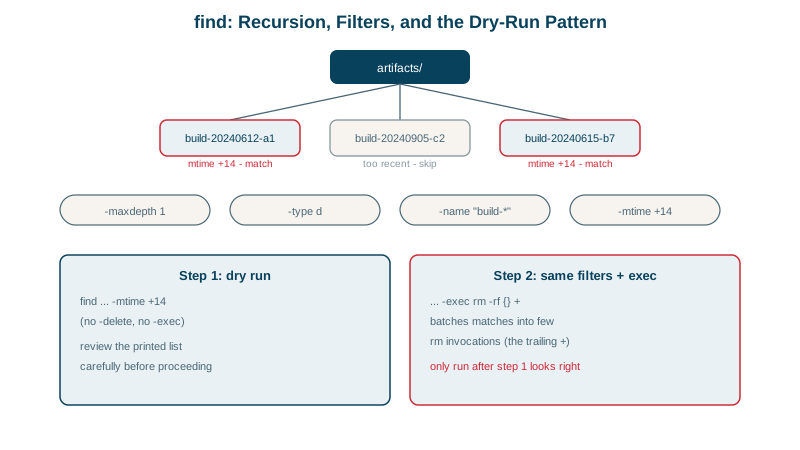
Three build directories, two of them older than 14 days:
Step 1: dry run. Look before deleting:
find artifacts -maxdepth 1 -type d -name 'build-*' -mtime +14artifacts/build-a
artifacts/build-bStep 2: act on exactly that list:
find artifacts -maxdepth 1 -type d -name 'build-*' -mtime +14 -print0 | xargs -0 rm -rf
ls artifactsbuild-c-print0 and xargs -0 separate names with null bytes, so names containing spaces or newlines can't be split into wrong paths. For files, find ... -delete works too, but always run the same command without -delete first: an unquoted pattern or a missing -maxdepth can match far more than you intended.
Finding large files with find
find . -type f -size +1M -printf '%s %p\n'3000000 ./big.bin-printf (GNU find) prints chosen fields: %s size, %p path, %TY-%Tm-%Td date. Sort by size for a top list:
sudo find /var -xdev -type f -size +100M -printf '%s\t%p\n' | sort -rn | head-xdev stays on one filesystem, so you don't wander into mounted network shares (Day 14).
Acting on find results: -exec and xargs
-exec cmd {} \;runs once per file;-exec cmd {} +passes many files per run (faster).xargs -0 -P 4runs actions in parallel.- Examples:
find /etc -name '*.conf' -newer /tmp/marker                # changed since a reference file
find . -type f -name '*.log' -mtime +30 -exec gzip {} +    # compress month-old logs
find /srv -type f -perm -o+w -ls                           # audit world-writable files
For finding a file by name across the whole system quickly, locate (from plocate) uses a prebuilt index; find checks the live filesystem.
Check yourself
To check exactly which files match before anything is removed. A mistaken pattern, a missing -type f or a missing depth limit could delete far more than intended, and there's no undo. Note also that -delete must come after the tests.
File names can contain spaces and even newlines, which xargs splits on by default, passing broken paths to the command. Null characters can't appear in names, so separating with them delivers every path intact.
Modified more than 14 days ago, counted in whole 24-hour periods. -mtime -14 means less than 14 days ago; for minutes, use -mmin.
find /var -type f -size +100M lists files over 100 MB, while du -ah /var | sort -rh | head ranks files and directories by size. ncdu gives an interactive view if it's installed.
+ passes many files to one command invocation, like xargs, which is much faster than running the command once per file.