Linux tar, gzip and zip Commands
On this page
Archiving vs compressing: tar vs gzip
- tar (tape archive) bundles many files and directories into one stream, keeping permissions, ownership and timestamps.
- A compressor (gzip, xz, zstd, bzip2) shrinks a stream.
tar can call the compressor for you, producing .tar.gz, .tar.xz or .tar.zst files.
tar flags you'll use: create, extract, list
| Flag | Meaning |
|---|---|
-c | Create an archive |
-x | Extract |
-t | List contents |
-f file | Archive file name (must be followed by the name) |
-z, -J, --zstd | gzip, xz, zstd compression (-a picks by file extension) |
-v | Verbose |
-C dir | Change to a directory before extracting or adding |
tar -czf myapp-1.4.2.tar.gz myapp-1.4.2/
tar -tzf myapp-1.4.2.tar.gzmyapp-1.4.2/
myapp-1.4.2/data.txt
myapp-1.4.2/README.md
myapp-1.4.2/bin/
myapp-1.4.2/bin/myappAlways list before extracting an archive you didn't make: you'll see whether it extracts into its own directory or scatters files into the current one (a "tarbomb"), and spot absolute paths or ../ entries.
mkdir out && tar -xzf myapp-1.4.2.tar.gz -C out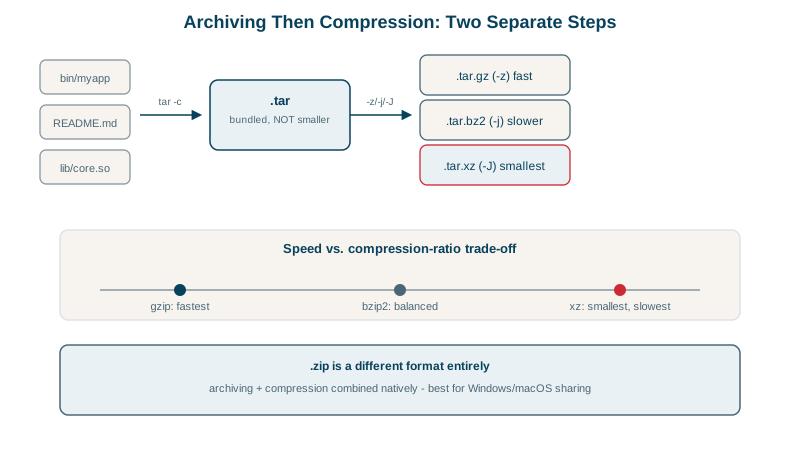
gzip vs xz vs zstd, measured
Compressing a 1.29 MB text file (the numbers 1 to 200,000, one per line) on the course VM:
gzip  428,481 bytes   28 ms
xz     47,560 bytes  205 ms
zstd 107,311 bytes 8 ms| Compressor | Strength | Use for |
|---|---|---|
| gzip | Universal, moderate ratio and speed | Compatibility with anything |
| xz | Best ratio, slow | Release downloads compressed once, downloaded often |
| zstd | Very fast with a good ratio; tunable levels | Backups, logs, build artifacts, anything you compress often |
| bzip2 | Older; mostly superseded | Legacy archives |
Highly repetitive data like this compresses far better than typical files, so measure on your own data. Already-compressed formats (JPEG, MP4, zip files) barely shrink further.
zip and unzip
zip -r site.zip public/ and unzip site.zip are handy for sharing with Windows and macOS users or for formats that are zip inside (JAR files, many document formats). zip compresses each file separately, so listing and extracting single files is quick, but the overall ratio is usually lower than tar plus a compressor.
Common tar mistakes
tar -cvzfvstar -cvfz:-fmust be followed by the file name; puttingzafterfmakes tar try to write to a file namedz.- Absolute paths: archive with relative paths (
tar -czf x.tar.gz -C /opt myapp) so extraction goes where you choose. - Permissions and owners: extracting as root restores the archived owners; as a normal user, files become yours. Use
--same-owneror--no-same-ownerdeliberately. - Verify backups: list the archive (
tar -tzf) and test-restore regularly; a backup you can't extract isn't one.
Check yourself
Listing with tar -tf shows where files will land, so you avoid scattering hundreds of files into the current directory, and lets you catch dangerous absolute or ../ paths before they overwrite something outside the target folder.
zstd, which is very fast at both compressing and decompressing and still compresses well, often better than gzip. xz compresses smaller but much more slowly.
-f takes the next word as the archive name, so tar tries to create an archive called z and treats backup.tar.gz as a file to add. Put f last: tar -czf backup.tar.gz dir/.
Use -C, as in tar -xzf backup.tar.gz -C /restore. tar changes into that directory before extracting, which must already exist, so files land there instead of in the current directory.
Windows and macOS open zip files natively without extra tools, so it's the best format for sharing with non-Linux users. tar archives remain better for Linux backups because they preserve permissions and ownership.