CSS Compositing Layers: Transform and Opacity
On this page
Learning Objective
Understand what compositor layers are, which conditions promote an element to its own layer, why animations of transform and opacity can run off the main thread, and how to use will-change responsibly without exhausting memory.
Concept Explanation
After painting, the browser does not always produce one flat image of the page. It can split the page into compositor layers, paint each layer separately, upload them to the GPU as textures, and assemble them into the final frame. This assembly is cheap compared with painting. If a layer moves, fades or scales, the compositor can redraw the frame from the textures it already has, without asking the main thread to recompute style, layout or paint.
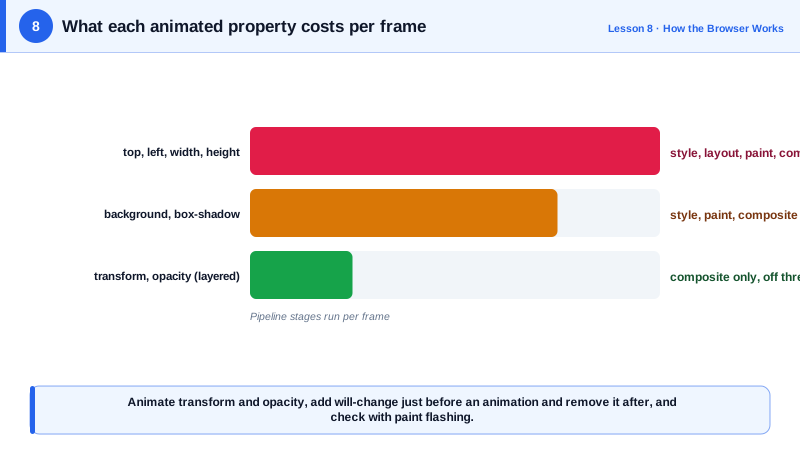
That is the core reason transform and opacity are the recommended properties for animation. When an element is on its own layer and you animate only these properties with CSS transitions, CSS animations or the Web Animations API, the browser can hand the animation to the compositor thread. The animation then continues at full frame rate even if JavaScript is blocking the main thread with a long task. Animate width, top or margin instead, and every frame needs layout and paint on the main thread, so a busy main thread means a stuttering animation.
Elements get their own layer for several reasons: a 3D transform, an active animation or transition of transform or opacity, the will-change property, video and canvas elements, position fixed in some cases, and overlap with another composited element. That last rule causes implicit promotion: if an element sits above a composited layer, the browser may need to promote it too so the drawing order stays correct. This is called layer explosion when it cascades through many elements.
Layers are not free. Each one consumes GPU memory proportional to its pixel area, and on mobile devices memory is limited. Promoting hundreds of elements, or very large ones, can slow the compositor down or cause the browser to fall back to slower paths. will-change: transform is a hint that an element is about to animate, so the browser can prepare a layer in advance. Apply it to the few elements that really animate, ideally just before the animation starts, and remove it afterward rather than applying it globally.
The Layers panel in Chrome DevTools shows every layer, its size, memory estimate and the reason it was composited. The Rendering panel's paint flashing option highlights areas that are repainted in green, which quickly reveals animations that are repainting on every frame. Together they let you confirm that an animation is truly compositor-only rather than assuming it.
| Property or setting | Main thread work per frame | Can run on compositor |
|---|---|---|
| transform | None once layered | Yes |
| opacity | None once layered | Yes |
| filter (some) | Depends on the browser | Sometimes |
| background-color, box-shadow | Paint | No |
| width, height, top, left | Layout and paint | No |
| will-change: transform | Prepares a layer in advance | Enables compositor animation |
Worked Example: A Smooth Drawer That Survives a Busy Main Thread
Two drawers animate in. The first animates left, the second transform. A button blocks the main thread for one second during the animation to show the difference.
.drawer {
  position: fixed; top: 0; bottom: 0; width: 320px;
  background: white; box-shadow: 0 0 24px rgb(0 0 0 / 0.2);
}

/* Layout-driven: needs the main thread every frame */
.drawer--left { left: -320px; transition: left 400ms ease; }
.drawer--left.open { left: 0; }

/* Compositor-driven: keeps animating while JavaScript is busy */
.drawer--transform { left: 0; transform: translateX(-100%); transition: transform 400ms ease; }
.drawer--transform.open { transform: translateX(0); }

@media (prefers-reduced-motion: reduce) {
  .drawer { transition: none; }
}function openDrawer(drawer) {
drawer.style.willChange = 'transform'; // hint just before animating
drawer.classList.add('open');
drawer.addEventListener('transitionend', () => {
drawer.style.willChange = 'auto'; // release the hint afterward
}, { once: true });
}
document.querySelector('#open-both').addEventListener('click', () => {
openDrawer(document.querySelector('.drawer--transform'));
document.querySelector('.drawer--left').classList.add('open');
const end = performance.now() + 1000;
while (performance.now() < end) {} // simulate a long task
});When the button is clicked, the transform drawer slides in smoothly while the left drawer freezes and then jumps to its final position once the long task ends. Turning on paint flashing shows green repaints for the left version on every frame and none for the transform version.
Real-World Examples
- Chrome's documentation on high performance animations recommends limiting animations to transform and opacity because they can be handled by the compositor, and the Layers panel in DevTools reports a "compositing reason" for every layer to help developers find accidental promotions.
- The MDN reference for will-change explicitly warns that it is intended as a last resort for existing performance problems and that applying it to too many elements can cause the browser to use excessive memory, which is why many style guides ban blanket rules such as applying it to every element.
Review Questions & Answers
If the element is on its own compositor layer, changing its transform only requires the compositor to redraw the frame from existing textures. The compositor runs on a separate thread, so it does not need the main thread, which is busy with the long task.
When an element overlaps a composited layer, the browser may have to promote it to a layer too so that drawing order stays correct. This can cascade across many elements, creating many layers that consume GPU memory and slow down compositing, a situation called layer explosion.
As a targeted hint on the few elements about to animate, applied shortly before the animation and removed afterward. It should not be applied globally or to many elements permanently, because each promoted layer consumes memory and can degrade performance.
Turn on paint flashing in the DevTools Rendering panel and check that the animated area does not flash green on each frame, inspect the Layers panel to confirm the element has its own layer, and record a Performance trace to confirm there are no layout or paint events per frame.