Service Workers and PWA Offline Support
On this page
Learning Objective
Explain the service worker lifecycle and its scope, implement caching strategies with the Cache API, make an application work offline or on unreliable networks, queue writes for later sync, add a web app manifest so the app can be installed, and update service workers safely without trapping users on old versions.
Concept Explanation
A service worker is a script that the browser runs separately from your pages, in the background, and that sits between your app and the network. Once installed for a scope, usually your whole origin, it receives a fetch event for every request those pages make and can answer from a cache, go to the network or combine both. That makes it possible to load instantly on repeat visits, keep working offline, survive flaky connections, receive push notifications and synchronize in the background. It requires HTTPS, and it has no access to the DOM; it communicates with pages through messages.
The lifecycle is the part developers most often get wrong. Registering a script triggers install, where the worker typically precaches the app shell, the HTML, CSS, JavaScript and icons needed to start. Then it waits: by default, a new worker does not take control while any tab is still using the old one, so two versions never serve the same page. When all old tabs close, it activates, which is the place to delete outdated caches, and from then on it handles fetches. skipWaiting and clients.claim shortcut this process, which is convenient but can mix old pages with new assets, so many apps instead show an "update available, reload" prompt and activate the new worker when the user agrees.
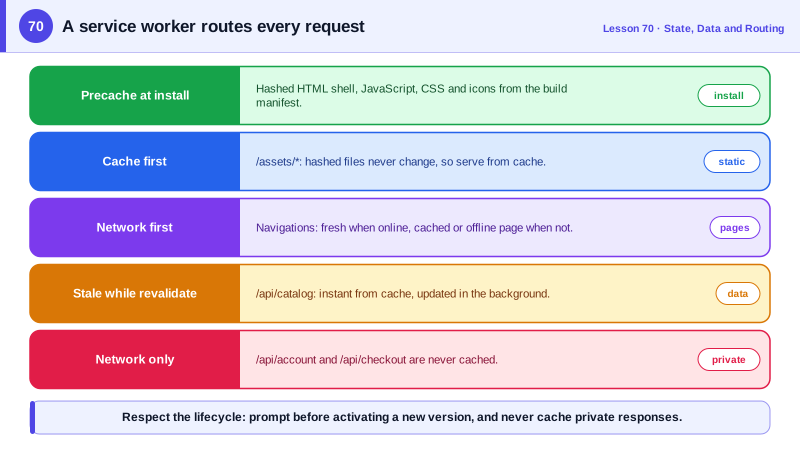
Caching strategies are chosen per type of request. Cache first serves from the cache and only goes to the network when missing, ideal for hashed static assets that never change. Network first tries the network and falls back to the cache when offline, suited to HTML and API data that should be fresh. Stale while revalidate, the same idea as Day 63, answers from the cache immediately and updates it in the background, suited to avatars, fonts and data where slight staleness is fine. Network only applies to requests that must never be cached, such as authenticated or payment operations. Writing these by hand is error-prone, so most projects use Workbox, often through a framework or build plugin, to generate the precache list and routing rules.
Offline reading is the easy half; offline writing is harder. A user who submits a form or adds a note while offline expects it to be saved. The common approach stores the pending operation in IndexedDB, shows it in the UI as pending and replays it when the connection returns, using the Background Sync API where available or the online event otherwise. Replayed writes need the same idempotency keys as Day 64, because the server may have received the original request before the connection dropped, and conflicts must be resolved when the same data changed elsewhere.
A web app manifest, a JSON file with the app's name, icons, start URL, display mode and theme color, together with a service worker makes the app installable as a progressive web app. Installed apps get their own window and icon, launch from the home screen or dock and, on some platforms, receive more durable storage. Be careful never to cache personalized or authenticated responses in shared ways, clear caches on logout, and include a way to unregister a broken worker, because a bad service worker can keep serving a broken app until it is replaced.
| Strategy | Behavior | Use for |
|---|---|---|
| Precache at install | Download the app shell up front | HTML shell, core JS and CSS |
| Cache first | Cache, network only if missing | Hashed static assets, fonts |
| Network first | Network, cache when offline | HTML pages, important API reads |
| Stale while revalidate | Cache now, update in background | Avatars, non-critical data |
| Network only | Never cached | Auth, payments, mutations |
| Queue and replay | Store writes, send when online | Offline forms and edits |
| Update prompt | Activate new worker on consent | Avoid mixing versions |
Worked Example: A Workbox Service Worker with an Update Prompt
The worker precaches the build, routes requests by strategy, serves an offline page for failed navigations and waits for the page's permission to update.
// sw.js (bundled with Workbox; self.__WB_MANIFEST is injected at build time)
import { precacheAndRoute, cleanupOutdatedCaches, matchPrecache } from 'workbox-precaching';
import { registerRoute, setCatchHandler } from 'workbox-routing';
import { CacheFirst, NetworkFirst, StaleWhileRevalidate, NetworkOnly } from 'workbox-strategies';
import { ExpirationPlugin } from 'workbox-expiration';

precacheAndRoute(self.__WB_MANIFEST);                        // hashed app shell
cleanupOutdatedCaches();

registerRoute(({ request }) => request.mode === 'navigate',
  new NetworkFirst({ cacheName: 'pages', networkTimeoutSeconds: 3 }));
registerRoute(({ url }) => url.pathname.startsWith('/assets/'),
  new CacheFirst({ cacheName: 'assets', plugins: [new ExpirationPlugin({ maxEntries: 200 })] }));
registerRoute(({ url }) => url.pathname.startsWith('/api/catalog'),
  new StaleWhileRevalidate({ cacheName: 'catalog' }));
registerRoute(({ url }) => url.pathname.startsWith('/api/account') || url.pathname.startsWith('/api/checkout'),
  new NetworkOnly());                                        // never cache private or payment data

setCatchHandler(async ({ request }) =>
  request.mode === 'navigate' ? (await matchPrecache('/offline.html')) : Response.error());

self.addEventListener('message', (e) => { if (e.data === 'SKIP_WAITING') self.skipWaiting(); });// main.js: register and ask the user before switching versions
if ('serviceWorker' in navigator) {
const reg = await navigator.serviceWorker.register('/sw.js');
reg.addEventListener('updatefound', () => {
const next = reg.installing;
next?.addEventListener('statechange', () => {
if (next.state === 'installed' && navigator.serviceWorker.controller) {
showToast('A new version is available.', { action: 'Reload', onAction: () => next.postMessage('SKIP_WAITING') });
}
});
});
navigator.serviceWorker.addEventListener('controllerchange', () => location.reload());
}{ "name": "Acme Notes", "short_name": "Notes", "start_url": "/", "display": "standalone",
"theme_color": "#6b21a8", "background_color": "#ffffff",
"icons": [{ "src": "/icons/192.png", "sizes": "192x192", "type": "image/png" },
{ "src": "/icons/512.png", "sizes": "512x512", "type": "image/png", "purpose": "any maskable" }] }In DevTools, the Application panel shows the worker's state, the caches and an offline checkbox. With offline enabled, a reload still opens the app from the precache, catalog data comes from its cache and account pages show the offline page instead of stale private data.
Real-World Examples
- Twitter Lite, launched in 2017 as a progressive web app with a service worker, reported a 65 percent increase in pages per session and a 75 percent increase in tweets sent, along with a 20 percent decrease in bounce rate, according to Google's published case study.
- Starbucks built its ordering progressive web app so customers could browse the menu and customize orders offline, and Google's case study reported that the app was much smaller than the native iOS app and doubled the number of daily web users who placed orders.
Review Questions & Answers
So that pages already open, which were loaded with the old worker and old assets, are not suddenly controlled by a new worker that may serve incompatible files. The new worker activates once all those pages are closed, or when the app explicitly asks it to skip waiting.
Cache first. A hashed file name changes whenever its content changes, so a cached file for a given URL is never outdated and can be served without asking the network, which is fastest.
Store each pending operation in IndexedDB, show it as pending in the UI and replay it when connectivity returns, using Background Sync where available or the online event. Include an idempotency key so a replay never duplicates an operation the server already received, and handle conflicts.
Serving it over HTTPS with a web app manifest that provides a name, icons, a start URL and a display mode such as standalone, and in most browsers a registered service worker. The browser then offers installation, giving the app its own icon and window.